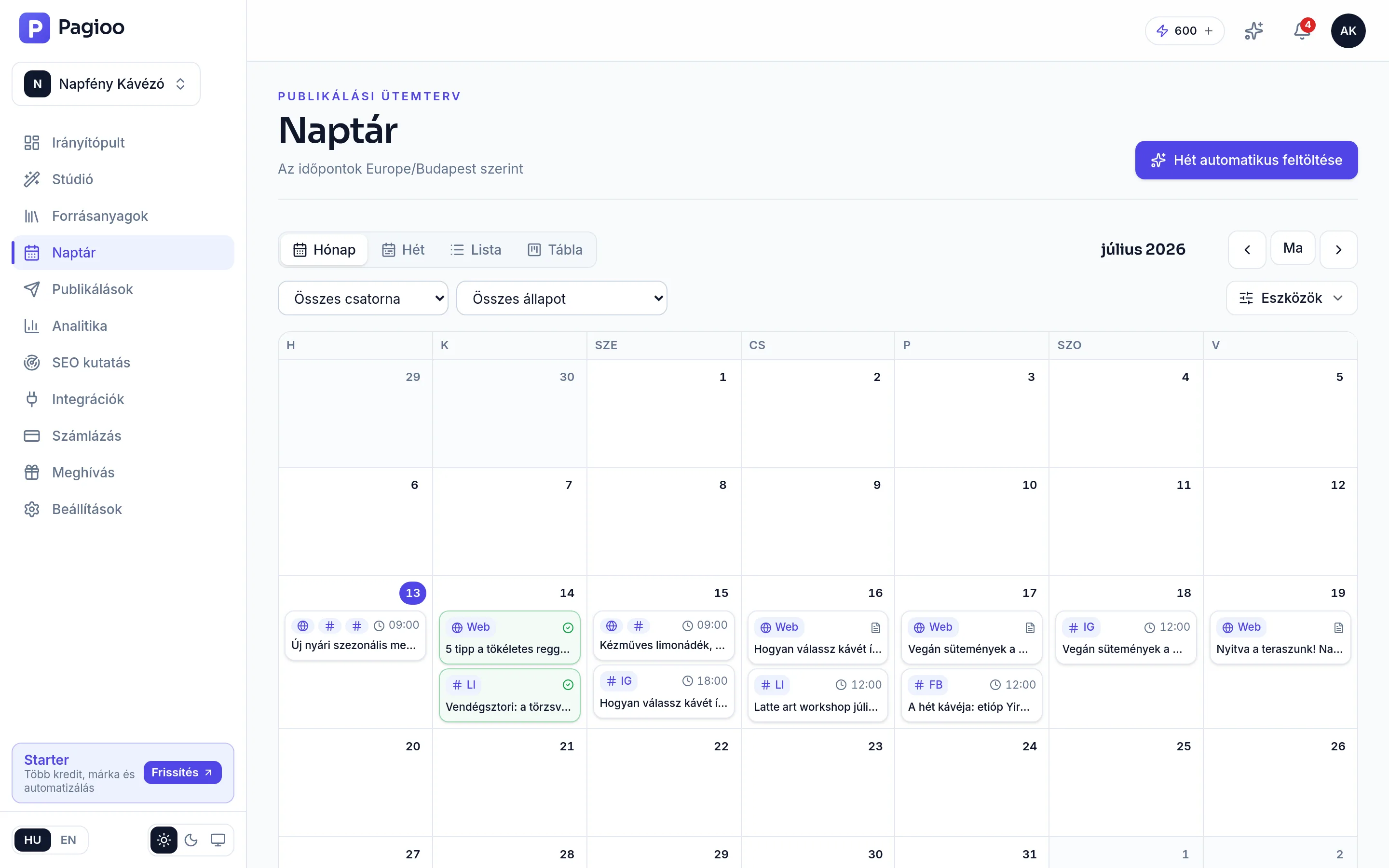
The four views and the filters
- Month — full monthly coverage. This is where an empty week shows up first.
- Week — the day-by-day arrangement, once the calendar is dense.
- List — a chronological listing; easiest to read through what is coming.
- Board — a table-style view for filtering and bulk overview.
Alongside the view you can filter by channel and by state, so one click shows only what goes to LinkedIn, or only what is still awaiting approval. The cards carry the channel label (Web, FB, IG, LI) and the publishing time. The calendar header states which time zone the times are in — worth a glance before you schedule to the hour.
The states
| State | What it means | Next step |
|---|---|---|
| Draft | Produced, neither approved nor scheduled. | Review it, edit it, then schedule it. |
| Awaiting approval | Waiting for a decision; cannot go live. | Open the Approvals page. |
| Scheduled | Approved and set for a time. | Nothing — it goes out by itself if the connection is healthy. |
| Published | It went out to the target channel. | Check how it looks live, the first few times. |
| Failed | The delivery did not succeed. | Open Publishing status for the cause. |
Moving to another day
- You can move within the planning window: Free 3, Starter 14, Growth 30, Scale 90 days.
- Already published content cannot be moved back into the future — what went out, went out.
- Content awaiting approval can be moved, but without approval it will not go out on the new date either.
Why is my calendar empty when content has been produced?
Because produced content is not automatically scheduled: it sits as a draft until you place it in the calendar (or until a run placed it). You will find those pieces in the Studio's content list.
Can I delete content from the calendar?
Yes, and the deletion affects the content itself, not only the scheduling. If only the time is wrong, move it instead.
Do I see my colleagues' content too?
Yes — the calendar shows the brand's whole content flow, which is the point of it in team work.