Inviting
Open the Team page
From the left-hand menu, near the account settings.
Give the email address and the role
You set the role when inviting, and it can be changed later.
They sign in through the link in the email
No new organisation is created: they get access to the same brand. An email notification is sent about the invitation.
Check the access
After they sign in, the Team page shows who is active and with what role.
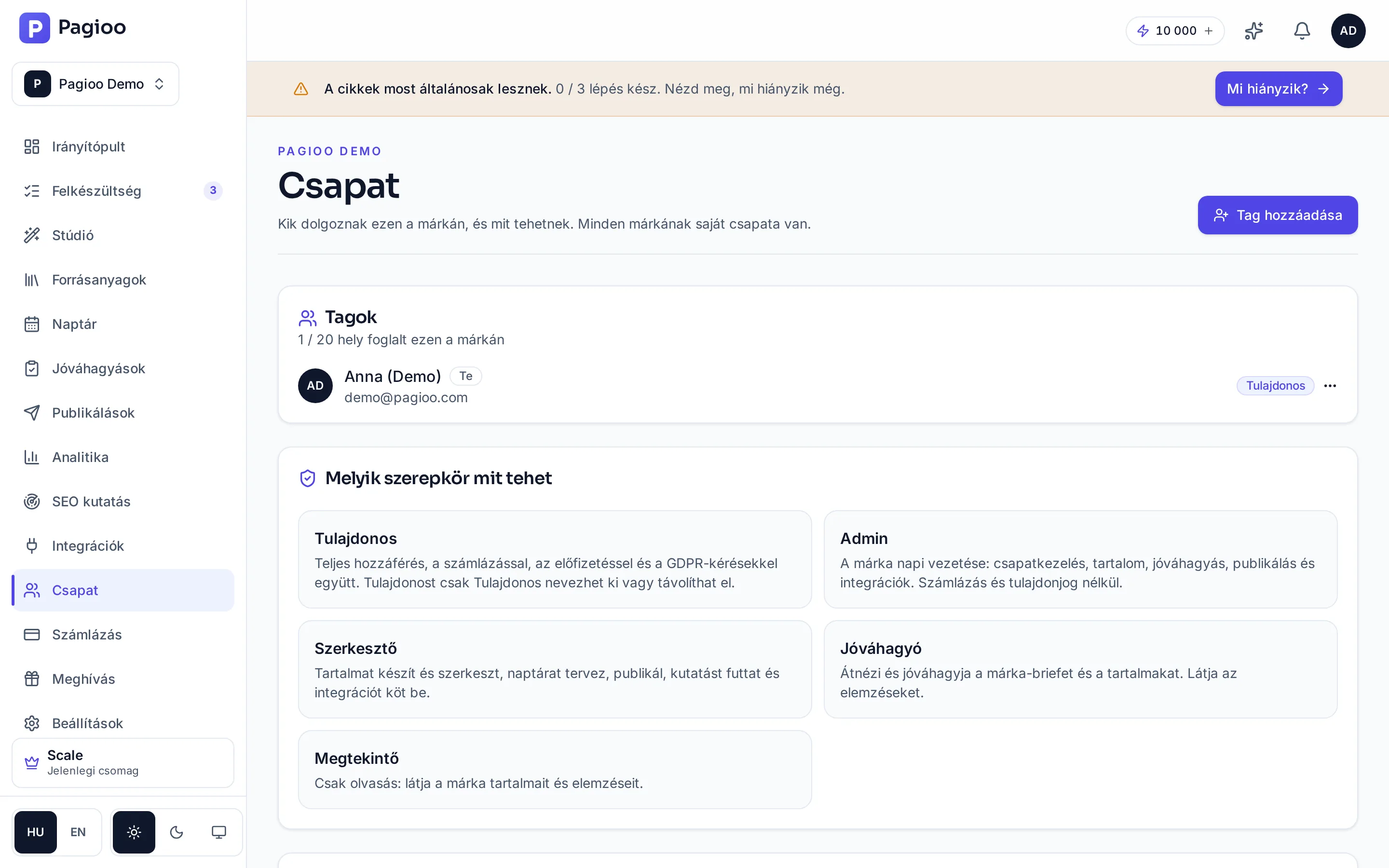
The five roles
| Role | What they can do |
|---|---|
| Owner | Full access, including billing, the subscription and data requests. Only an owner can appoint or remove an owner. |
| Admin | Day-to-day running of the brand: team management, content, approval, publishing and integrations — without billing or ownership. |
| Editor | Produces and edits content, plans the calendar, publishes, runs research and sets up integrations. |
| Approver | Reviews and approves the brand brief and content. Can see the analytics. |
| Viewer | Read only: can see the brand's content and analytics. |
Teams and several brands
If you manage several brands you can control access per brand — not every team member has to see every brand. In agency work that is fundamental: an editor working on one client does not need another client's material.
What happens when I reach the user limit?
No further invitations can be sent until you free a seat or move to a larger plan. The limits: Free 2, Starter 3, Growth 8, Scale 20.
Can a team member see the billing data?
Only if their role allows it. Billing is worth keeping to a narrow circle.
What happens to content produced by a team member if I revoke their access?
The content and the version history remain — they belong to the brand, not to the user. Authorship stays visible in the version history.
Do team members get notifications?
Yes, notifications are configurable. See Notifications.