1. Fill in the brand brief
Open the Brief page and give the audience, the offer, the communication goal, your main topics, the tone, and what the system should never write. This becomes the standing context for every later piece — it is a system setting, not a one-off form.
2. Ask for a topic in the Studio
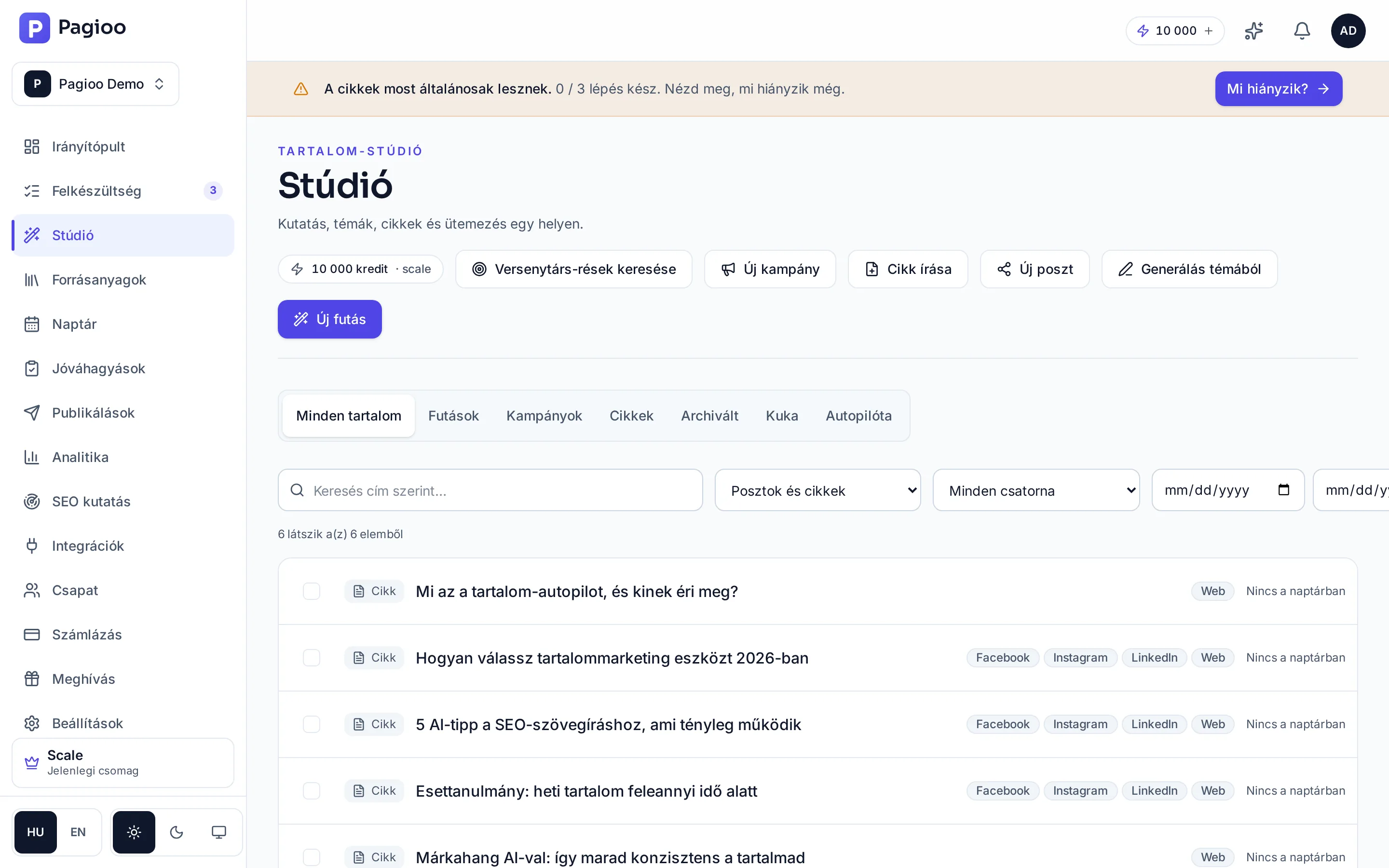
Open the Studio
In the left-hand menu, the Studio is where content production starts.
Ask for topic suggestions
The system suggests topics, questions and keyword directions from your brief and audience. If you already know what you want to write about, supply your own topic — it goes through the same process.
Choose what gets made
Tick the topics you want articles for. Pagioo shows the estimated credit cost of the run before you start it.
Start the run
Generation runs in the background. You can leave the page, even close the browser — the Studio and the dashboard both show the state.
3. Review and edit
You open the finished article from the Studio's content list — generation and finished content share one page. In the editor the title, body, metadata and the attached social posts are all editable. Worth doing on every article:
- Read the first paragraph: it decides whether anyone reads on.
- Check the factual claims, numbers and names. AI can be wrong, and you are answerable for it.
- Look at the SEO feedback and fix what is worth fixing (Starter and up).
- If something is stylistically off, ask the Writing assistant for a rewrite — one sentence describing what should change.
- Read the social posts too: these are separate pieces of writing, not extracts from the article.
4. Schedule or publish
When you are happy, place the article in the calendar for a given day, or publish it immediately to your connected targets. Publishing to a website requires a connection first — see Setting up a WordPress connection.
How long does an article take?
Usually a few minutes, though the number of articles requested, images and current load all affect it. Generation runs in the background; you do not have to stay on the page.
Do I lose credits if generation stalls?
A failed step does not charge your balance. If credits did disappear against a failed generation, see Generation stalled and tell us.
Can I regenerate the article if I do not like it?
Yes, but a new generation uses new credits. In most cases it is faster and cheaper to have the Writing assistant rewrite the problem passage than to produce the whole article again.