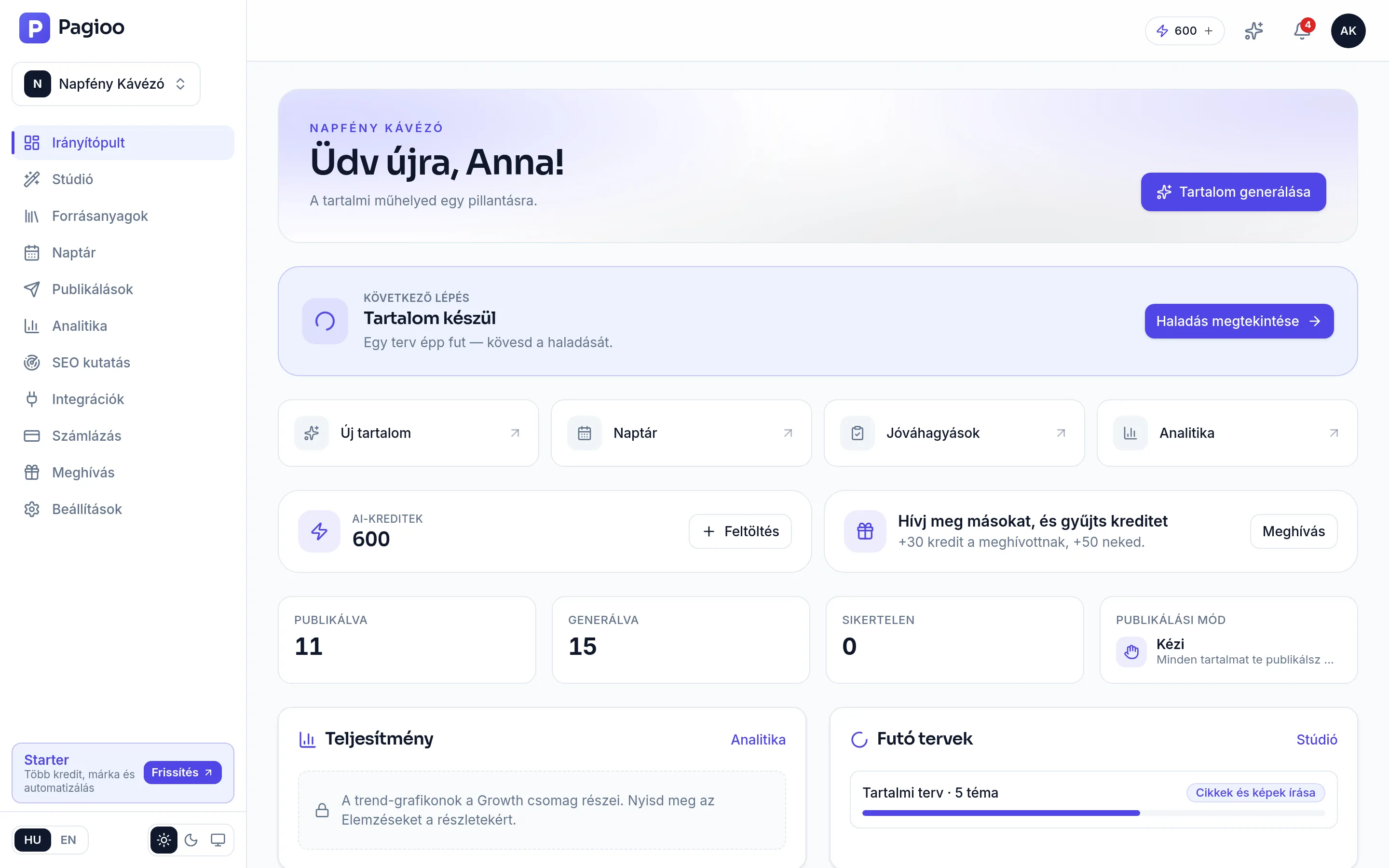
The "Next step" card
Pagioo's dashboard deliberately does not open with how much you have achieved, but with what you should do next. The card changes with the state of the account:
| What the card says | What it means | What to do |
|---|---|---|
| Your brief needs finishing | The brand profile is not filled in or not approved. | Open the Brief page and finish it. Without it every piece of content is more generic. |
| Content is waiting for your approval | Finished content that cannot go live without a decision. | Open Approvals and decide what can go out. |
| A plan is waiting for your feedback | The content plan is ready but the run has not started. | Review the topics and start the run in the Studio. |
| Failed publishing | One or more pieces did not reach their target channel. | Open Publishing, read the cause, and retry. |
| Nothing is scheduled yet | Your calendar is empty, so nothing will appear in the coming weeks. | Build a content plan, or switch on Autopilot. |
What the figures mean
- Published — pieces that went out successfully.
- Generated — pieces that were produced. If this keeps rising while Published does not, content is being made but not getting out: check the calendar and the approvals.
- Failed — what the system tried to send and the channel rejected or did not accept. This is a task, not a statistic.
- Publishing mode — manual or automatic. This tells you at a glance whether anything goes live on its own or waits for your decision.
Alongside the figures sit your AI credit balance with a top-up button, the invite card, the Running plans block showing progress on a current run, and the Performance block — whose content is plan-dependent, with trend charts belonging to the Growth plan. The four quick links (New content, Calendar, Approvals, Analytics) put the most common destinations one click away.
Upcoming posts
The list shows the coming days' scheduled content in order, with its channel. It is the quickest way to find out whether the calendar is genuinely filled or whether only last week's items are left in it. If it is empty but you have been working on content, those pieces are probably sitting as drafts — check the Studio.
Why can I not see freshly generated content on the dashboard?
The dashboard focuses on publishing and scheduling state. Freshly produced, unscheduled content is in the Studio's content list; the "Generated" figure does include it.
Can I change what the home screen shows?
The dashboard's content follows the state of the account; it is not a customisable surface. The next-step card changes with what is missing or waiting — if nothing is, that means you are up to date.
Why is every figure zero when content has been produced?
The figures are about publishing: if content was produced but has not gone out, Generated rises and Published does not. The bottleneck is then scheduling or approval, not production.
Does it show all my brands together?
No, always the active one. The brand switcher is at the top of the left-hand menu — if the numbers look surprising, check which brand you are on first.